What to check when you cannot log in to MT4
A checklist for when MT4 will not log in, from MetaQuotes help: the status bar, the three fields, two kinds of password, the Server tab.
Published ・ MyBrokerBonus Editorial
You typed everything in and MT4 still will not connect. This guide gives a short list of things to check, in an order that goes from the quick and cheap to the less likely. It is written mainly for the PC version of MT4, and it uses the MT5 help where the MT4 help is silent and says so each time.
Everything here comes from the help pages of MetaQuotes, the company that makes MT4 and MT5. Menu names and item names are given in the English wording of that help. The figures are sketches that show where things are, not the real screen. The wording on your screen can differ a little by version and by how the broker supplies the platform. This guide writes no amounts and no numbers of days.
What “log in” means here
The MT4 help defines authorization as the connection of the terminal to the server through a login and a password. So a failed login can come from three places: what you typed, which kind of password you used, and the road between your computer and the server. The checks below follow those three places.
The order is a suggestion for reading, not a rule from MetaQuotes. Stop at the first point that does not fit.
Check 1: Is the terminal connected at all?
The MT5 help says the status bar, at the bottom of the window, holds a server connection indication. Look there first. The MT4 help adds that the terminal needs a continuous flow of data from the servers, and that without quotes it cannot trade, though it can still be used for analysis and testing while disconnected. So even if the window opened normally, a chart that does not move may mean that you are not connected.
The help pages read for this guide do not list the error messages. If a message appears on your screen, write down its exact wording and give it to the broker’s support, so that they can tell what it means.
Check 2: Do the three fields match the account?
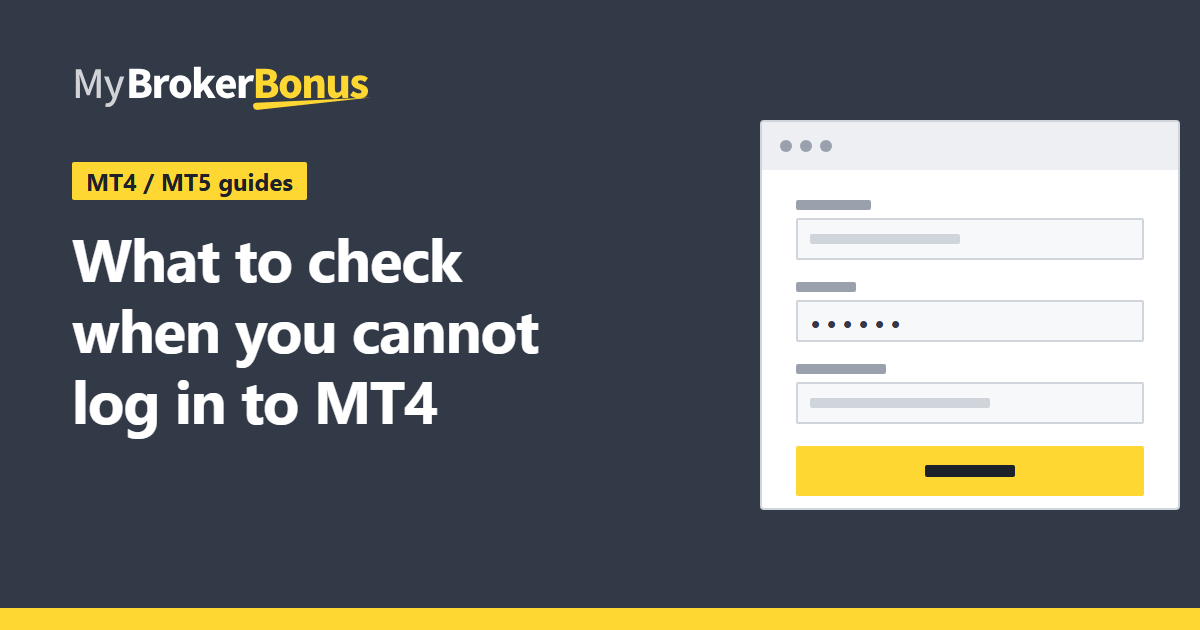
The login window asks for three things. The MT5 help names them Login (the account number), Password and Server, and the MT4 help lists the same three: account number, password and server. In MT4 the window opens from the “Login” command in the context menu of an account in the Navigator, or from the File menu. In MT5 it is “Login to Trade Account”, from the File menu or the Navigator.
- Account number. Compare it with the number in the information the broker sent you. One wrong character is enough to fail.
- Password. Use the password the broker gave for the trading account. The data on this site does not hold how any broker names its passwords.
- Server. It must be the server where the account was opened. The MT4 help on opening accounts says the server list shows the ping of each server and that the lowest ping is preferable. That advice is for choosing a server when you open a demo account. For an account you already have, use the server name the broker gave you, not the one with the lowest ping.
Both helps say a server can also be typed in by hand as an address and a port number, separated by a colon. Use this only when the broker has told you the address.
This site’s data holds no server name and no account number for any company. Those come only from the broker, so this guide cannot say which server your account uses.
Check 3: Standard password or investor password?
Two kinds of password can log in. The help says that with the standard password you get full rights for working with the terminal, and that an investor login lets you see the account status, analyze prices and work with your own Expert Advisors, but not trade. Automated trading by Expert Advisors is not allowed either.
Standard (master) password
See the account statusYes
Analyze pricesYes
Work with your own Expert AdvisorsYes
TradeYes
Automated trading by Expert AdvisorsYes
Investor password
See the account statusYes
Analyze pricesYes
Work with your own Expert AdvisorsYes
TradeNo
Automated trading by Expert AdvisorsNo
The help describes the standard password as giving full rights for working with the terminal. How a broker names or sends each password is not in the help.
So if you log in but cannot place an order, check which password you used. How a broker names the two passwords, or whether it sends both, is not in the help.
Check 4: Does the account ask for a one-time password?
The MT4 help on OTP says a one-time password (OTP) is an additional level of security, asked when you connect. It is asked from the desktop terminal after the trading account has been bound to a password generator on the mobile terminal. The login screen then asks for the server name, the account number, the master password and the one-time password. The help says the one-time password has a limited validity, shown by a bar, and that a new one is generated after it expires. If you set this up on a phone once, expect the extra field on the PC.
Check 5: A first login can ask for a new password
The MT5 help says that on the first login you may be forced to change the password. The new password must meet the minimum length shown in the dialog, contain lowercase and uppercase letters, numbers and special characters, and differ from the current one. The MT4 help read for this guide does not describe this step, so it is not assumed for MT4.
Check 6: The settings of the Server tab
If the fields are right and the password is the right kind, look at the settings. In MT4 they are in “Tools – Settings” (Ctrl+O), on the Server tab.
- 1Enable proxy serverSwitches on a proxy server. A button for its settings (address, type, login, password and a test) then becomes active.
- 2Keep personal settings and data at startupIf it is ticked, the last account is logged in again at the next start. If it is not ticked, the saved account and passwords are deleted, and you type them in again.
The MT5 help describes a proxy server as an intermediate between the trader’s computer and the trade server. The MT4 option “Enable proxy server” lets you set its address, type (HTTP, SOCKS5 or SOCKS4), login and password, with a test. If a proxy is switched on that you did not mean to use, or its details are wrong, the terminal is going through the wrong road. The help does not say that this is a common cause, only that it is a setting that sits between you and the server.
The other option, “Keep personal settings and data at startup”, decides whether the last account is logged in again by itself. If you turn it off, the saved account and passwords are deleted when the terminal starts again, and you must type them in. This can be the reason why an account that used to open by itself now asks for everything.
Check 7: When to ask the broker
Some things only the broker can fix. The MT4 help says a real account cannot be opened from the terminal and can only be opened by the broker, and that if problems occur when an account is opened, the technical support of the brokerage company should be asked for help. Ask the broker when:
- the account number or the server name in the broker’s information does not work in any form you try;
- you are not sure the account has been created yet, since only the broker can tell you;
- you see a message that you cannot explain, after the checks above.
When you write to support, give the account number and the exact wording of the message. Do not send the password.
Summary of the order
- Look at the connection indication in the status bar.
- Check the account number, the password and the server against the broker’s information.
- Check that you used the standard password, not the investor password.
- Check whether a one-time password is asked for.
- On a first login, expect a forced password change (in MT5).
- Check the Server tab for a proxy and the saved-login option.
- If none of these explains it, ask the broker.
For the full steps to install and log in, read how to install MT4 and MT5 and log in. To remove an old saved account from the list, see how to delete saved login details in MT4 and MT5.
Where this comes from
- MetaQuotes, MetaTrader 4 help, “Authorization”:
https://www.metatrader4.com/en/trading-platform/help/userguide/authorization - MetaQuotes, MetaTrader 4 help, “Opening of Accounts”:
https://www.metatrader4.com/en/trading-platform/help/userguide/open_an_account - MetaQuotes, MetaTrader 4 help, “OTP”:
https://www.metatrader4.com/en/trading-platform/help/userguide/otp - MetaQuotes, MetaTrader 4 help, “Client Terminal Settings” and the Server tab:
https://www.metatrader4.com/en/trading-platform/help/beginning/setupandhttps://www.metatrader4.com/en/trading-platform/help/setup/setup_server - MetaQuotes, MetaTrader 5 help, “Authorization”:
https://www.metatrader5.com/en/terminal/help/startworking/authorization - MetaQuotes, MetaTrader 5 help, “User Interface” (status bar):
https://www.metatrader5.com/en/terminal/help/startworking/interface - MetaQuotes, MetaTrader 5 help, “Platform Settings” (proxy server):
https://www.metatrader5.com/en/terminal/help/startworking/settings
Risks to keep in mind
Logging in is only the start. Once you place orders on a real account you can lose money quickly, and a bonus does not change that. Do not tell your password to anyone, including in a message to support. While you are new to it, try the operations on a demo account, and on a real account trade only with money you can afford to lose.