How to find your MT4 or MT5 server name
Where to find the server name MT4 and MT5 ask for at login: the broker's information, the server list, typing an address and port, per MetaQuotes help.
Published ・ MyBrokerBonus Editorial
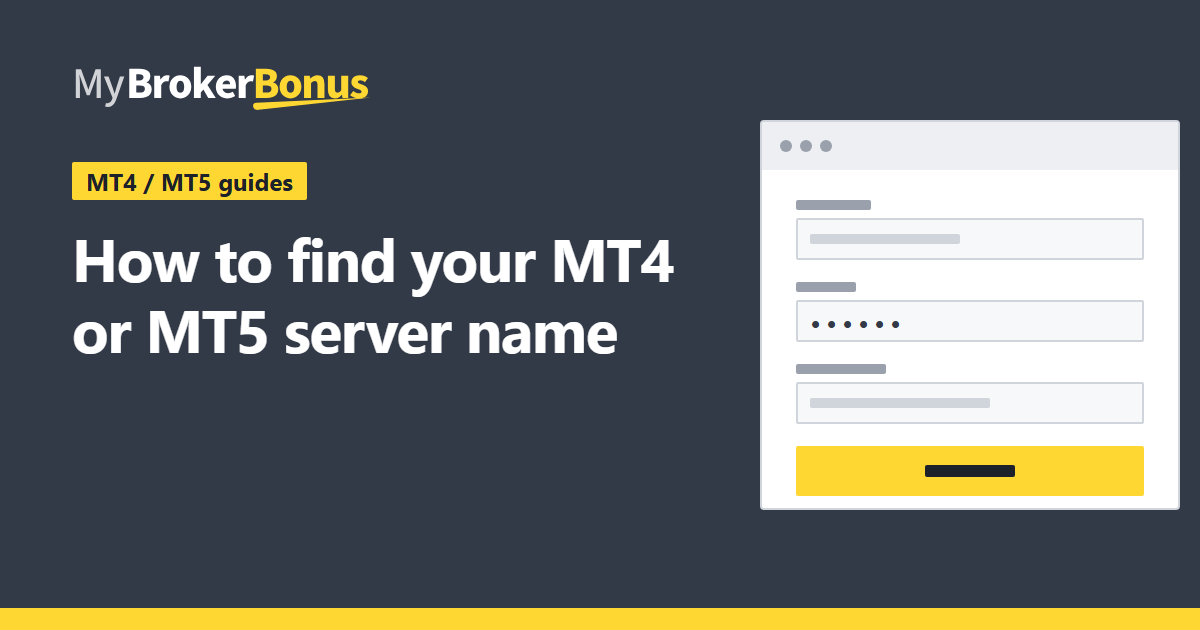
The login window of MT4 and MT5 asks for a server, and many people stop there because they do not know the name. This guide is only about finding that name. It does not cover the other reasons a login can fail. For those, read what to check when you cannot log in to MT4.
The basis is the help pages of MetaQuotes, the maker of MT4 and MT5. Menu names are given in the English wording of that help. The figures are sketches that show where things are, not the real screen, and your screen can differ a little by version. This guide gives no amounts and no server names of any company, because the data on this site holds none, and it says plainly where the help is silent.
What the server field wants
The name you want is the server of your own account. When the MT4 help on one-time passwords lists what to enter while binding an account on the mobile terminal, it asks for “the name of the server on which the trading account was opened”. So the name you want is the one tied to your account, and not just any server that answers. For how the login window works as a whole, see how to install MT4 and MT5 and log in.
Which route fits depends on what you already have. The help does not say where a broker lists the name, so route 1 means checking with the broker.
Route 1: the name from the broker
The MT4 help says real accounts can only be opened by brokers, so the broker is the one that knows the server name of your account for certain. The help pages read for this guide do not say where a broker writes the name, or what the names look like. So this guide does not guess. Look through what the broker gave you, and if you do not find a server name, ask the broker. Check the name letter for letter, since you will type or pick it.
This site’s data holds no server name for any company, so it cannot tell you which one your broker uses. That was checked by searching the data for the word “server”: it appears only in general terms texts and in the name of an unrelated company on a warning list, never as a field that holds a server name.
Route 2: the server list in Open an Account
MT4 lets you open a demo account from “File – Open an Account”, or from the context menu of Accounts in the Navigator. The help says the addresses of available servers, their names and their ping are listed there. A “Scan” button refreshes the ping.
- 1Server fieldType an address and port, a domain and port, or the brokerage company name, then press Enter.
- 2The listIt shows the addresses of available servers, their names and ping.
- 3ScanRefreshes the ping. The help does not say the list marks which server is yours.
This list can be a way to see names. Read two things with care.
- Ping is for choosing a server for a new demo account. The help says the lowest ping is preferable when you open an account. That is not a rule for an account you already have. For an existing account, the server is the one where it was opened, not the one with the smallest ping.
- Opening a demo account is not opening your real account. The help says real accounts are opened only by brokers. A name you see in this list does not tell you, by itself, which server holds your account.
The help pages read do not say whether the list marks the server of an account you already have. If a name in the list matches the one the broker gave you, that is a hint. It is still worth checking with the broker if you are unsure.
Route 3: typing it in
The MT4 help says a server can be given in three ways, and you press Enter after typing. The MT5 login page describes the first way, with the example form of an address and a port joined by a colon.
address:portAddress and port, joined by a colonMT4 / MT5domain:portDomain name and port, joined by a colonMT4company nameThe brokerage company nameMT4
The MT4 / MT5 label on each row says which help page describes the form. The MT4 page lists all three; the MT5 login page describes the address and port form. Whether the other two also work in MT5 is not in the pages read.
The company-name form may help when you know the broker’s name but not the address. The help does not say how a name is matched or what happens if the company has several servers, so after typing a company name, look at what the list shows and compare it with the broker’s information. Use an address and port only when the broker has given you one, because a wrong address is simply a wrong server.
Route 4: when you still have no name
If none of the above gives you a name you can trust, ask the broker. The MT4 help says that if problems occur when an account is opened, the technical support of the brokerage company should be asked for help. When you write, say which platform you use (MT4 or MT5), and ask for the exact server name for your account. Do not send your password.
Where it goes after you find it
Once you have the name, it goes into the Server field of the login window. In MT5 the window is “Login to Trade Account” in the File menu or the Navigator. In MT4 it is the “Login” command of an account in the Navigator, or the File menu. After you log in, look at the connection indication in the status bar. The MT5 help says it holds a server connection indication. The help does not say whether it shows the server name itself, so do not rely on it to read the name back.
To remove an old account entry, see how to delete saved login details in MT4 and MT5.
Summary
- The name you need is that of the server on which your account was opened.
- Look at what the broker gave you; if a name is missing, ask the broker.
- The server list in Open an Account shows addresses, names and ping, but the lowest ping is advice for a new demo account.
- A server can be typed as an address and port, a domain and port, or the company name (the MT4 help).
- This site holds no server names for any company.
Where this comes from
- MetaQuotes, MetaTrader 4 help, “Opening of Accounts”:
https://www.metatrader4.com/en/trading-platform/help/userguide/open_an_account - MetaQuotes, MetaTrader 4 help, “OTP”:
https://www.metatrader4.com/en/trading-platform/help/userguide/otp - MetaQuotes, MetaTrader 4 help, “Authorization”:
https://www.metatrader4.com/en/trading-platform/help/userguide/authorization - MetaQuotes, MetaTrader 5 help, “Authorization”:
https://www.metatrader5.com/en/terminal/help/startworking/authorization - MetaQuotes, MetaTrader 5 help, “User Interface” (status bar):
https://www.metatrader5.com/en/terminal/help/startworking/interface
Risks to keep in mind
Logging in is only the start. Once you place orders on a real account you can lose money quickly, and a bonus does not change that. Take care with any server address that a stranger gives you, since a login window cannot tell you who runs the server. Do not tell your password to anyone, including in a message to support. While you are new to it, try the operations on a demo account, and on a real account trade only with money you can afford to lose.