Install MT4 and MT5 and log in: how to enter the account number, password and server name
The steps to install MT4 or MT5 and log in on a PC or phone: entering the account number, password and server name, and what to check if it fails.
Published ・ MyBrokerBonus Editorial
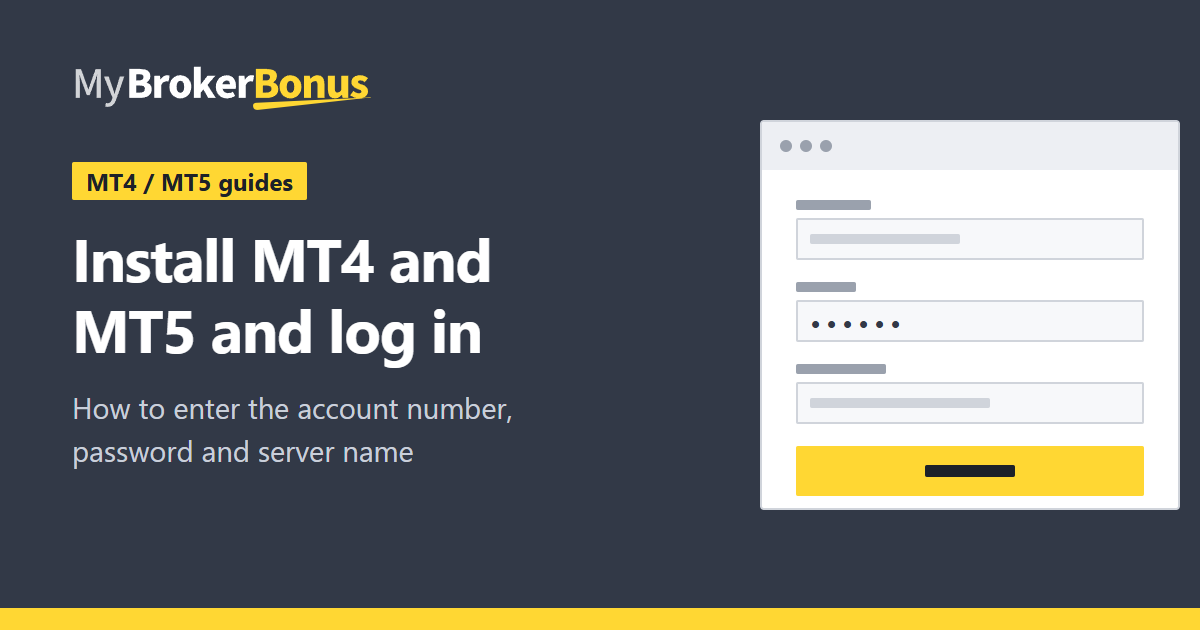
Many overseas forex brokers use MT4 or MT5 (MetaTrader) as their trading platform. Once you have an account, the first job is to install the platform and log in. This guide takes you through it, on a PC and on a phone.
The wording and layout on screen can differ a little by version and by how the broker supplies the platform. The figures are sketches that show where things are, not the real screen.
What you need
When you open an account, the broker sends you three items, by email or in its client area.
- Login (account number): a string of digits.
- Password: the one for the trading platform. It can differ from the password for the broker’s client area.
- Server name: the name of the server the account connects to. Real and demo accounts use different ones.
If any one of the three is wrong, the login fails. When you copy and paste, take care that no space is added before or after.
From installing to a connected account
- DownloadFrom the broker's own page
- Install and open
- Open the login windowFile, then Login to Trading Account
- Enter the three itemsLogin, password, server
- Check the connectionBars at the bottom right
Install and log in on a PC
- Download the MT4 or MT5 installer from the broker’s own page. Use the link in the broker’s information, not a copy from another site found in a search. A platform with the broker’s name built in saves you the trouble of finding the server.
- Open the downloaded file and follow the steps.
- On first launch a window for opening an account may appear. If you do not need it, close it.
- From the “File” menu at the top left, choose “Login to Trading Account”.
- 1LoginThe account number the broker gave you.
- 2PasswordThe trading password for that account. It can differ from the one for the broker's client area.
- 3ServerThe exact server name for that account. Real and demo accounts use different servers.
- 4Log inPress it to connect. The platform remembers the account if you tick the save box.
Enter the account number, the password and the server name from the top down. Pick the server from the list or type it in. A single wrong character can mean the server is not found, or that you reach a different account. Tick the save box if you want to skip typing next time.
Point
Real and demo accounts have different server names. A real account number does not work on a demo server. First check which account the information is for.
How to tell that you are connected
When the login succeeds, a bar-shaped indicator appears at the bottom right of the screen. If the bars are filled and the amount of data sent and received is shown, you are connected. “No connection” means you are not.
If the bars stay empty, check the server name and the password first.
If it does not connect, check these in order.
- Is the server name exactly as in the information, to the last character?
- Upper and lower case in the password. Is it the trading password?
- Is the account real or demo, and is the server the right one?
- Your internet connection, and whether the broker’s server is under maintenance.
If you still cannot log in, ask the broker’s support. Do not tell the password to anyone.
Install and log in on a phone
- Find “MetaTrader 4” or “MetaTrader 5” in the app store and install it.
- Open the app and go to the screen for adding an account from the settings (the wording is like “New account” and “Login to an existing account”).
- Search for the server by the broker’s name and choose the server name you were given.
- Enter the account number and the password and log in.
The menu wording differs by device and version. You enter the same three items as on a PC.
What to read next
Once you are connected, the next step is placing an order. See how to place orders in MT4 and MT5. How bonus credit shows on the screen is in how bonus credit looks in MT4 and MT5. The bonuses running now are collected in the bonus list.
Risks to keep in mind
Connecting the platform does not move any money. But once you place orders on a real account you can lose money quickly, and a bonus does not change that. While you are new to it, try the operations on a demo account, and on a real account trade only with money you can afford to lose.