How to delete saved login details in MT4 and MT5: remove a saved account from the list
The steps to delete an account saved in MT4 or MT5 from the Navigator list on a PC: the right-click Delete, the Delete key, and what to note first.
Published ・ MyBrokerBonus Editorial
If you open accounts again and again to claim bonuses, MT4 and MT5 end up holding accounts you no longer use. This guide shows how to delete an account saved in the platform from its list. It is written mainly for the PC version.
The wording and layout on screen can differ a little by version and by how the broker supplies the platform. The figures are sketches that show where things are, not the real screen. Menu names follow the English wording in the MetaQuotes help, the company that makes MT4 and MT5.
What to check before you delete
Look at these two things first.
- Will you use the account again? To get back into it later, you have to enter the account number, the password and the server name again. If you have not noted down all three, it is safer to leave the account where it is.
- Is it the right account? Compare the account number in the list with the one in the information the broker sent you before you go on.
The list of accounts is in the Navigator
The list of saved accounts is in the “Navigator” window, under “Accounts”. The MetaQuotes help says this group holds the list of open accounts, and that a context menu lets you delete an old one.
If the Navigator is not on the screen, open it in any of these ways.
- Press Ctrl and N together (it opens or closes the window).
- Choose “Navigator” from the “View” menu.
- Press the Navigator button on the Standard toolbar (the way the MT4 help describes).
The Delete key works on the account selected in the Navigator.
The steps to delete an account
- Open itNavigator: Ctrl+N
- Show listAccounts group
- Pick oneRight-click
- Choose DeleteOr Delete key
- Check listIt is gone
- Open the “Accounts” group in the Navigator so that the list of accounts shows.
- Right-click the account you want to remove.
- Choose “Delete” from the menu that appears.
- Check that the account is gone from the list.
Instead of right-clicking, you can select the account in the list and press the Delete key. It does the same thing. To remove several accounts, repeat the same operation one by one, and look at the account you have selected each time.
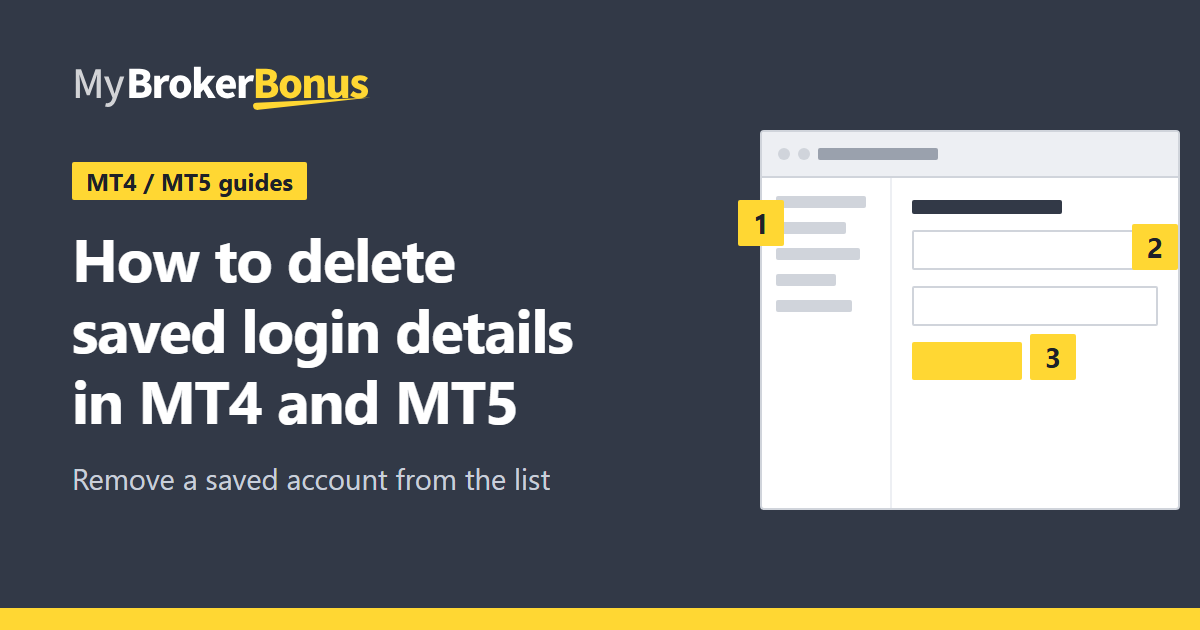
- 1AccountsThe group that lists the accounts saved in this platform.
- 2The account to removeRight-click the one you no longer need.
- 3DeleteDeletes the selected account.
The account numbers are made up. The items in the menu can differ a little by platform and version.
The menu also holds items such as “Open an Account”, “Login to Trade Account” and “Change Password”. They sit next to Delete, so take care to press the right one.
Caution
These steps act on an account in the Navigator's list. This guide does not cover what happens to the account the broker opened for you, such as closing it. Follow the broker's own information for that. The help also says a real account cannot be opened from the platform; only the broker opens one.
Expired demo accounts are removed by themselves
The MT5 help says an expired demo account is deleted from the Navigator window. So when the list of demo accounts has grown long, you may not need to delete the expired ones yourself.
When you want to use a deleted account again
To use a deleted account again, log in once more. Choose “Login to Trade Account” from the “File” menu, then enter the account number, the password and the server name. The full steps, with a figure, are in how to install MT4 and MT5 and log in. If you tick the save box in the window, you can skip typing next time.
What to read next
How to plan when you open accounts one after another is in how to use several brokers’ bonuses: order and preparation. The bonuses running now are collected in the bonus list.
Risks to keep in mind
Tidying up accounts does not move any money. But once you place orders on a real account you can lose money quickly, and a bonus does not change that. Do not tell your account details to anyone. While you are new to it, try the operations on a demo account, and on a real account trade only with money you can afford to lose.